It's four years old.
There is no way to tell whether it matches your version of Unreal until a menu or a setting doesn't line up.
Mindocai turns the YouTube tutorials that already exist into courses connected to your editor. Search by what you want to do, follow the steps next to your project, and ask questions without leaving Unreal.
Most people learn Unreal from YouTube tutorials, and the tutorials are good. The friction is in everything around them:
There is no way to tell whether it matches your version of Unreal until a menu or a setting doesn't line up.
The twenty minutes you need are somewhere in the middle, and nothing points you to them.
A video has no connection to your editor. It can't show where a step happens, track your progress, or answer a question.
At the core of Mindocai there's an engine that takes a YouTube tutorial and turns it into a course connected to your editor. The video doesn't change and stays on YouTube. What changes is everything around it.
A two-hour tutorial becomes a list of short sections, each with its own stretch of video.
What gets done, in which panel, with which settings. The concrete steps of every section, written down.
Every section knows which part of Unreal it touches. That connection is what lets Mindocai explain, answer, and guide while you follow it.
The videos stay on YouTube. Views and revenue keep flowing to whoever made them.
A query like “I want my logo to spin in 3D” finds the tutorial that covers it and the exact section inside it. A two-hour video starts at the twenty minutes you need.
If something moved in your version of Unreal, Mindocai adjusts the steps at playback time. The original video is never edited; the steps around it adapt.
The video plays wherever you prefer: on a second screen or next to the viewport. The section's steps stay in the panel, next to your project, so watching and doing happen in the same place.
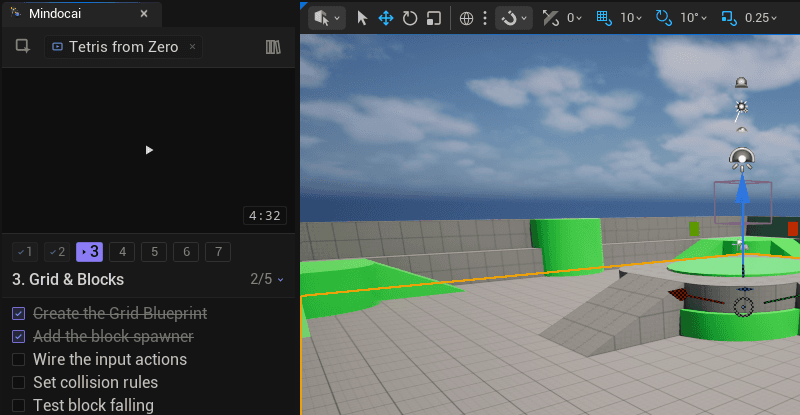
Every section you finish is marked. When you come back, the course picks up exactly where you left off.
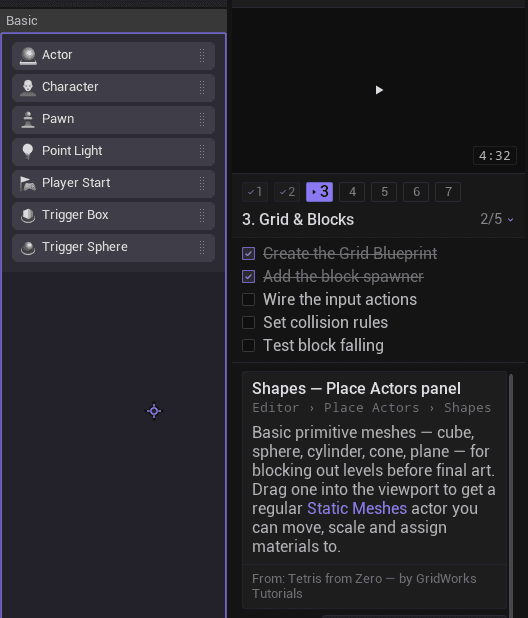
Arm the picker and click any part of the editor: a panel the tutorial never opened, a setting you haven't seen before. Mindocai explains the element on your screen, in your version, not a generic equivalent.
The chat receives your question together with its context: which video you're watching, which minute you're at, and which steps you've completed. Answers start from where you are, not from a blank prompt.
Errors specific to your project never appear in a video. Mindocai reads the relevant lines from the Output Log, explains what happened, and tells you how to continue.
Some things you want to build don't map to a single tutorial. “I want snow in my level” is a goal, not a search query.
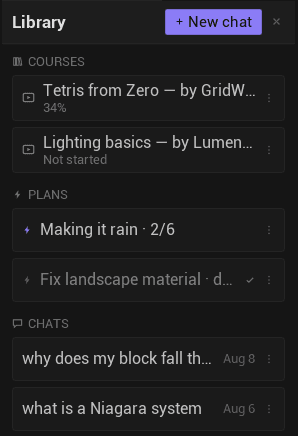
Mindocai turns it into a plan. Steps that only need a short explanation are explained in place. Steps that need more link directly into the right section of a course.
The result is a path you can follow end to end, with courses queued at the exact section each step needs.
Mindocai never touches your project and never acts on its own. It explains, guides, and helps you find your own mistakes. What you learn stays with you when you close the course.
AI is the how, not the what. What Mindocai offers is courses. AI is what makes a normal tutorial work inside your editor.
Mindocai is in development. Ask for early access, propose a collaboration, or just say hi.
No. It's a course platform. The unit is the course: a tutorial split into sections, with its steps, connected to your editor. AI is what makes it possible for a normal tutorial to work that way, not a chat panel with Unreal in the background.
Is this a chat window with a video next to it?
No. It's a course platform. The unit is the course: a tutorial split into sections, with its steps, connected to your editor. AI is what makes it possible for a normal tutorial to work that way, not a chat panel with Unreal in the background.